

Caching is the biggest single step most WordPress sites can take: a stored copy of the page instead of a PHP run. But a cache is a copy machine. It serves whatever the page contains, and it does nothing about the work that happens next to it: admin screens that keep calling the server, background jobs that start on their own, and a database that grows with every edit.
WordPress ships with defaults that make sense for some sites and are carried by all of them. Plugins add their own, and some of it stays after the plugin is gone. None of it is large on its own. Together it is the part of performance work a cache leaves to you, and it is where the useful WordPress performance tweaks are.
What every cached page carries
Open the source of almost any WordPress page and you find code the site never asked for. On the home page of our test site, a WooCommerce shop built with Elementor, WordPress adds emoji support: inline styles, a settings block and a script that tests whether the browser can draw every emoji itself. Browsers that fail the test, for example on systems without the newest emoji or flags, then download a 22.8 KB emoji script as well. We measured the inline part alone at 3.8 KB, about 1.6 KB compressed, in a 124 KB page.
The same page loads jQuery Migrate, a 13.6 KB compatibility file (4.9 KB compressed) for code written for older versions of jQuery, as one of its 21 external scripts. The head also links to the XML-RPC discovery file and to two RSS feeds. None of this is much, but the cache hands it to every visitor on every page, and the browser still has to download, parse and run it.
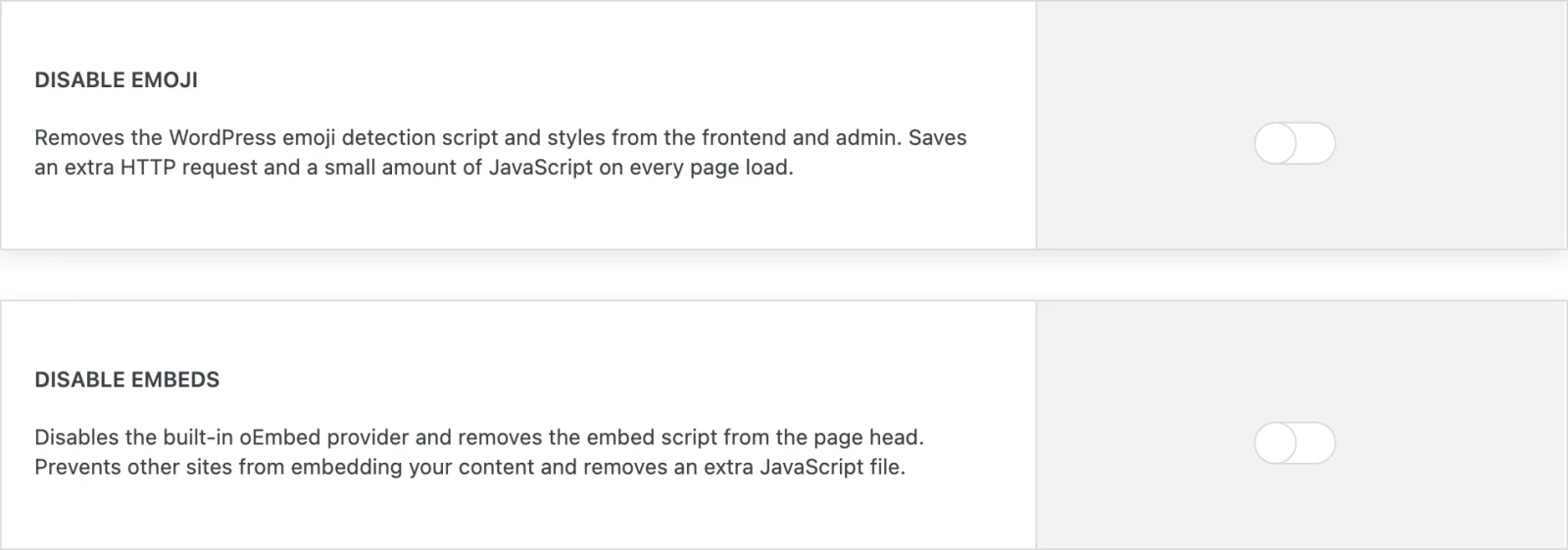
This is the kind of thing we built Must-Have Tweaks for: a set of switches for what WordPress does by default, grouped into tabs. Every feature starts switched off, and most of them are separate files that are only loaded when their switch is on. The Performance tab covers the list above. Disable Emoji removes the emoji code, Disable Embeds turns off WordPress’s own oEmbed endpoint and its discovery links, and Disable XML-RPC also removes the RSD and WLW links from the head. Disable jQuery Migrate removes it on the front end only, and it is the one to test: if your theme or a plugin still relies on old jQuery code, you may see JavaScript errors, and the switch goes back off.
The admin keeps calling the server
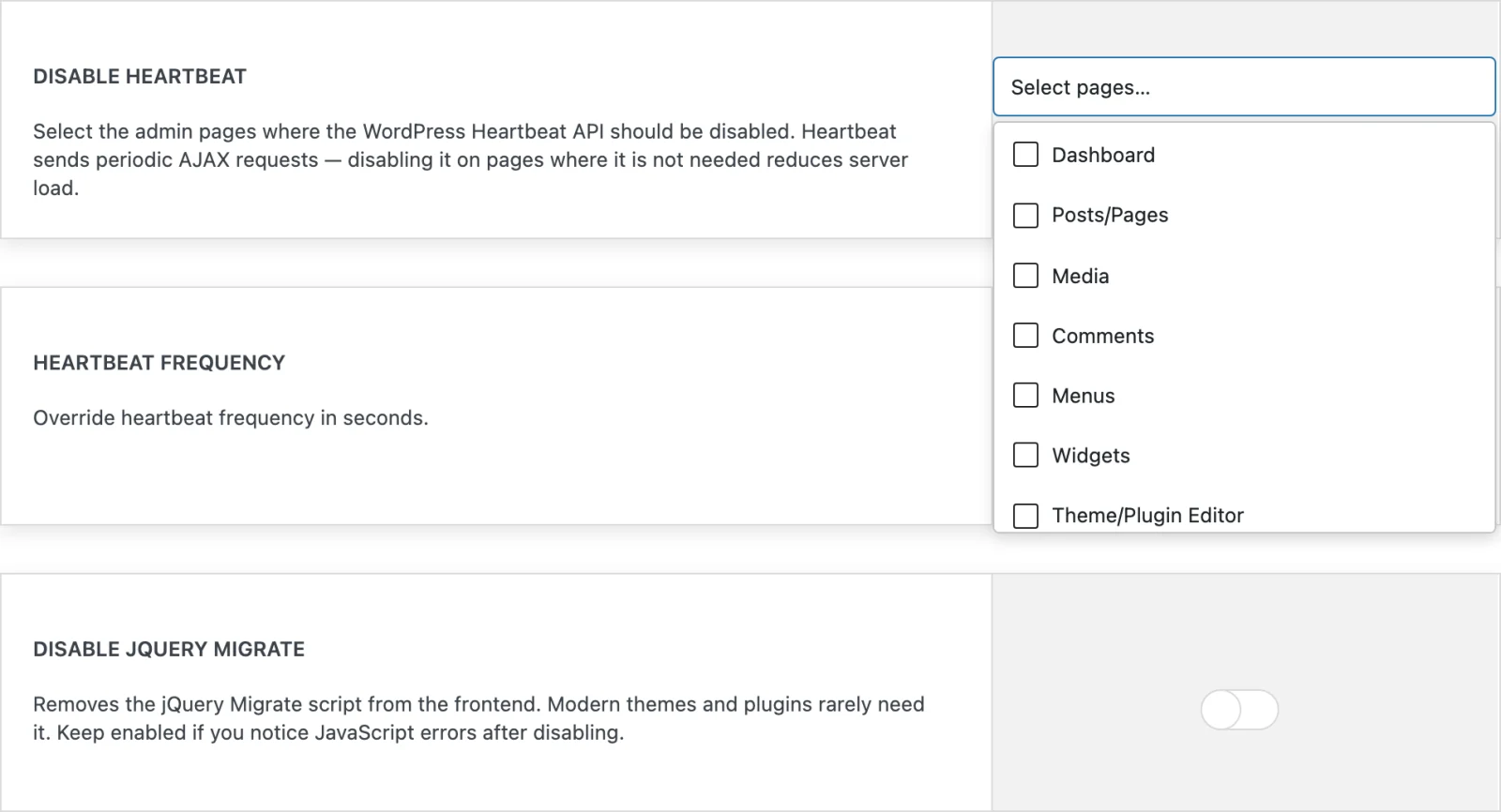
The WordPress Heartbeat API keeps the admin in sync with the server. Every open admin tab sends a request to admin-ajax.php once a minute by default while it has focus, and every two minutes in the background. Each of those requests loads WordPress with every active plugin, and none of them can come from a cache. One open tab is not much. A team that keeps the dashboard, the order list and a few editor tabs open all day is a steady stream of uncached requests on the same PHP workers that serve your visitors.
In Must-Have Tweaks you pick the admin screens where Heartbeat is switched off, and you can set a longer interval, up to 300 seconds, for the rest. Be careful with the post and page screens: post locking (the warning that someone else is editing), the classic editor’s autosave and the login prompt after a session expires all run on Heartbeat. If several people edit content, a slower Heartbeat there is a better choice than none.
Background jobs nobody looks at
By default WordPress has no real scheduler. When it handles a request, it checks whether a scheduled event is due and, if one is, sends a request to wp-cron.php on its own site, which loads WordPress again and runs the job. Plugins schedule cleanups, syncs, reports and license checks this way, and the list only grows.
The WP Cron Manager in Must-Have Tweaks (switched on under Misc, it then appears under Tools) shows that list: every event with its hook, schedule, next run and whether it is overdue. On our test site it lists 54 events. Seven of them run every 30 minutes or more often, two of them every minute. Four belong to plugins that are no longer active, and two of those to a plugin that is not even installed any more.
Removing such leftovers is what the Delete button is for. For everything else it is less useful than it looks: most plugins schedule their events again as soon as they find them missing, so deleting an active plugin’s job rarely lasts. Hook names can also mislead. Two events on our test site start with jetpack_, although Jetpack is not installed; they belong to a library that WooCommerce ships with. Check where a hook comes from before you remove it. Run starts an event immediately, with everything it does, e-mails included.
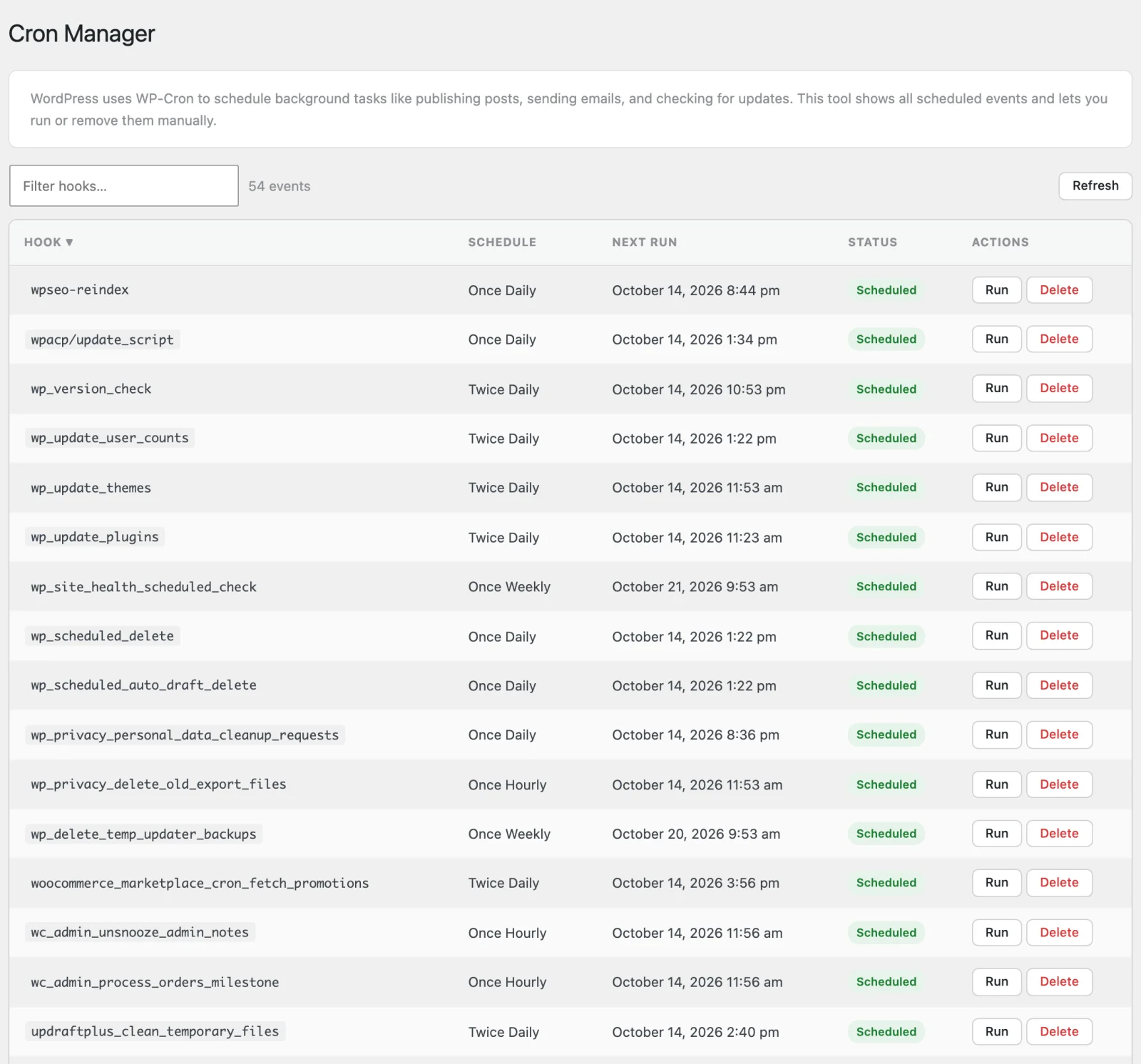
wpseo-reindex and updraftplus_clean_temporary_files from two plugins that are no longer active.A database that only grows
WordPress keeps every revision of every post unless you tell it otherwise. Each revision is another row in the posts table with a full copy of the content, so a page saved a hundred times can be stored a hundred and one times, and every backup carries all of them.
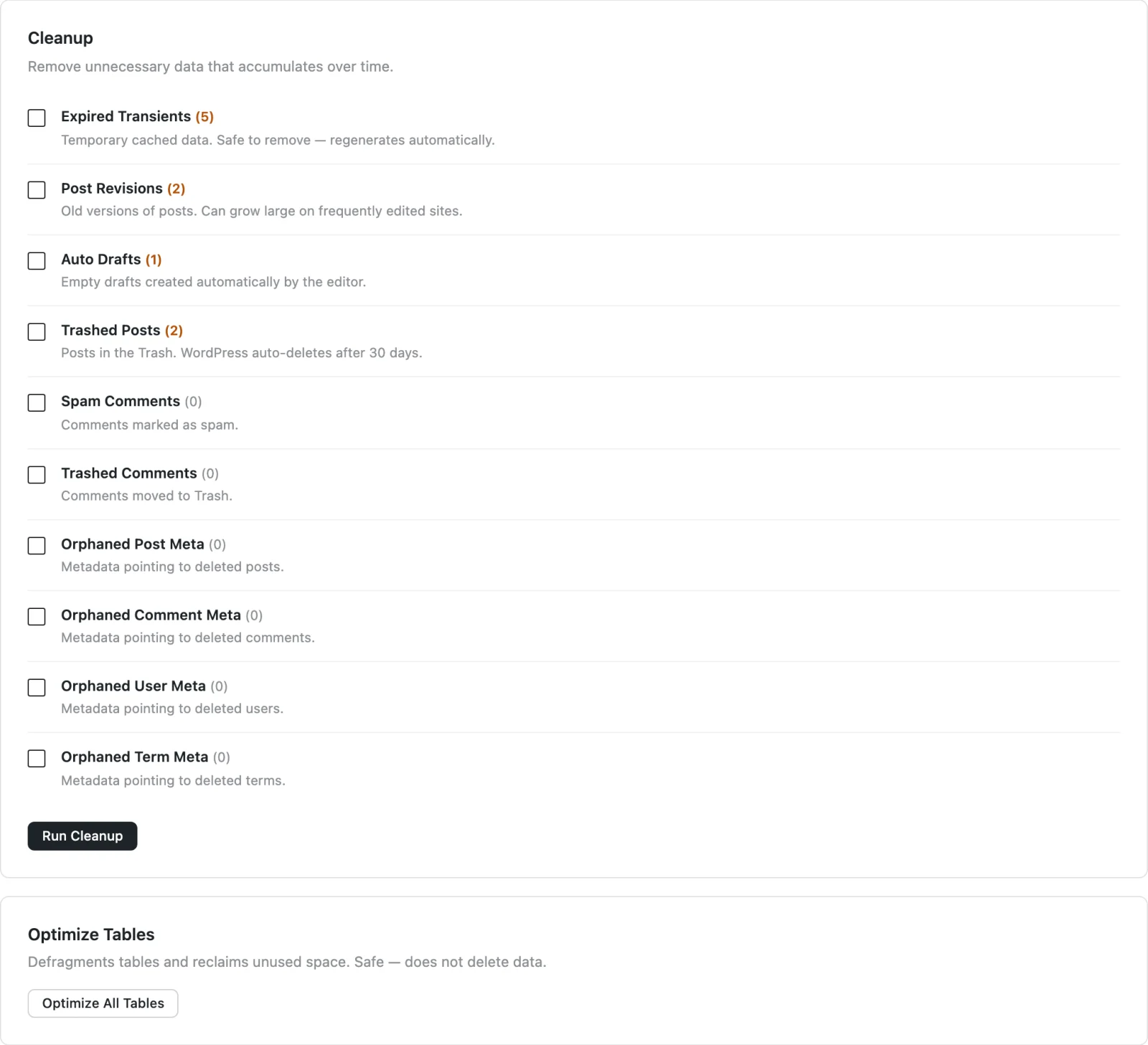
Limit Revisions in the Content tab sets how many WordPress keeps per post. WordPress applies the limit the next time that post is saved, so the revisions that already exist stay until then. For those, the Maintenance tab of the Database Manager shows how many rows each cleanup would remove before you run it: expired transients, revisions, auto drafts, trashed posts and comments, spam, and metadata left behind by deleted posts, comments, users and terms. Two things to know. Post Revisions removes all revisions, not only those above your limit, and nothing here can be undone, so export the database from the Export tab first. Our test site is small and had little to clean.
A snippet instead of one more plugin
Some plugins on a typical site exist for one small change: a filter, a redirect, a few lines of CSS. Every active plugin is loaded on every uncached request, and many bring a settings page, their own update check or an admin notice along with that one change. A snippet is not faster than a tiny plugin with the same code. What you leave out is everything that comes with the plugin.
The Snippet Manager in Must-Have Tweaks keeps PHP, CSS, JavaScript and HTML snippets as files in wp-content/must-have-tweaks/snippets/. PHP snippets are ordinary files that the plugin includes at plugins_loaded, so PHP’s opcode cache treats them like any other plugin file. CSS and JavaScript snippets are loaded as real files with a version taken from their content, so browsers cache them and fetch a new copy when you change one. If a PHP snippet causes a fatal error, the plugin switches it off and records the error, so the next request runs without it. The cost: while the Snippet Manager is on, each uncached request first reads the list of active snippets from the database.
Two switches we would leave off
Not every switch in the Performance tab is a speed win. Remove Version Query Strings strips ?ver= from CSS and JavaScript URLs. Browsers and most CDNs cache those URLs without trouble, and the version is what tells them a file has changed after an update. Disable All Updates stops update checks, automatic updates and their e-mails, and with them the security fixes that arrive as updates. Both exist for setups that handle these things another way. Neither belongs on a speed checklist.
Switch off what you do not use
A cache makes a page fast to deliver. What is in that page, what runs next to it and how much the database carries are still decisions, and WordPress makes them for you with defaults meant for every site at once. Go through them one at a time, check the result, and keep what you actually use. If you want those switches in one place instead of one plugin per change, take a look at Must-Have Tweaks.