


Most speed work happens in front of the visitor: a cache hit instead of a PHP run, smaller images, less JavaScript. The jobs that run behind the site get less attention, although they share the same CPU, disk and database with every visitor. On most sites the heaviest of those jobs is the WordPress backup.
A classic backup run reads every file on the site, packs everything into an archive, dumps every database table and uploads the result. The next night it does the same again, although almost nothing has changed in between. If your site feels slow at the same time every night, the backup schedule is the first thing to check.
What a full backup run costs
Each step uses a different part of the server. Reading and compressing files keeps the disk and a CPU core busy. The archive needs its own free disk space until the upload has finished. The database dump runs a long series of queries next to your visitors’ queries, and tools that lock tables while they read them hold up writes until they are done. All of it usually happens in one long PHP process started by WP-Cron, which keeps a PHP worker away from real requests for as long as it runs.
To see how much of that work goes into files that did not change, we timed two passes over the roughly 30,700 files a snapshot of our demo site would include today. Checking the size and modification time of every file took about one second. Reading and hashing every file took about 12 seconds, before anything was compressed, written or uploaded. That was on a local machine with a warm file cache, so your numbers will differ, but the proportion is the point: the expensive part is reading content, and most of that content is the same as yesterday.
Read only what changed
We built Must-Have Backup around that observation. By default it takes a full snapshot once a week. Between snapshots, an hourly scan walks the site and compares each file’s size and modification time with what it saw the last time. Only files that differ are read, hashed and stored. On our demo site, a typical scan over the last month found fewer than twenty changed files.
Storage follows the same rule. Files are cut into chunks of up to 4 MB, and every chunk is named after its SHA-256 hash. A chunk that is already stored is not written again, and new chunks are compressed when that makes them smaller. A full snapshot still reads every file, but it only writes what is new. The database dump is written in a fixed order, so a table that has not changed produces the same chunks as last week and is not stored again.
The dump reads each table 500 rows at a time inside one consistent-read transaction instead of locking tables, so the site keeps writing while it runs. Only one snapshot can run at a time: a second trigger is turned away instead of starting a parallel run.
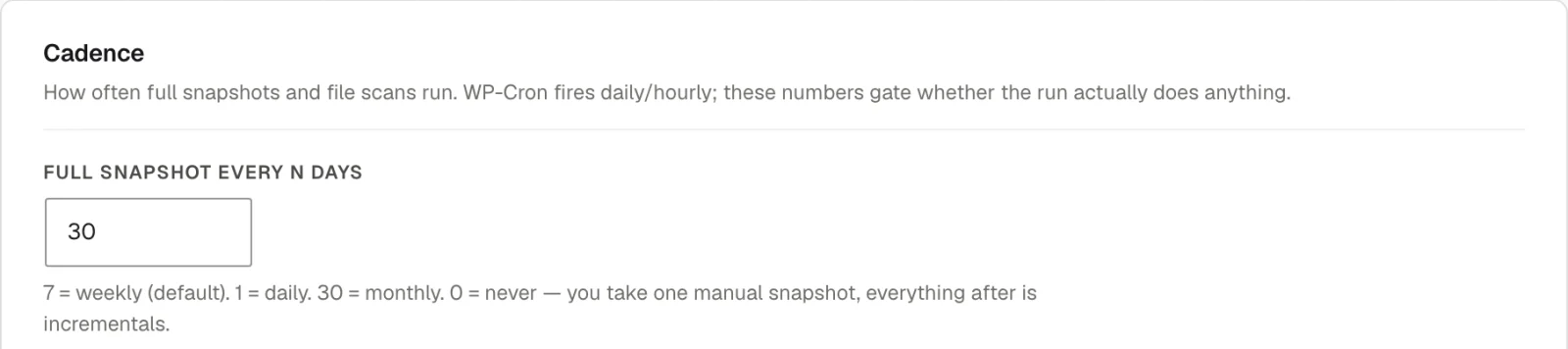
If you want to pick the hour yourself, set Full snapshot every N days to 0 and run wp mh-backup snapshot from a system cron job at a quiet time. Snapshots taken from WP-CLI are uploaded to your destinations like any other.
Keep the cache out of the backup
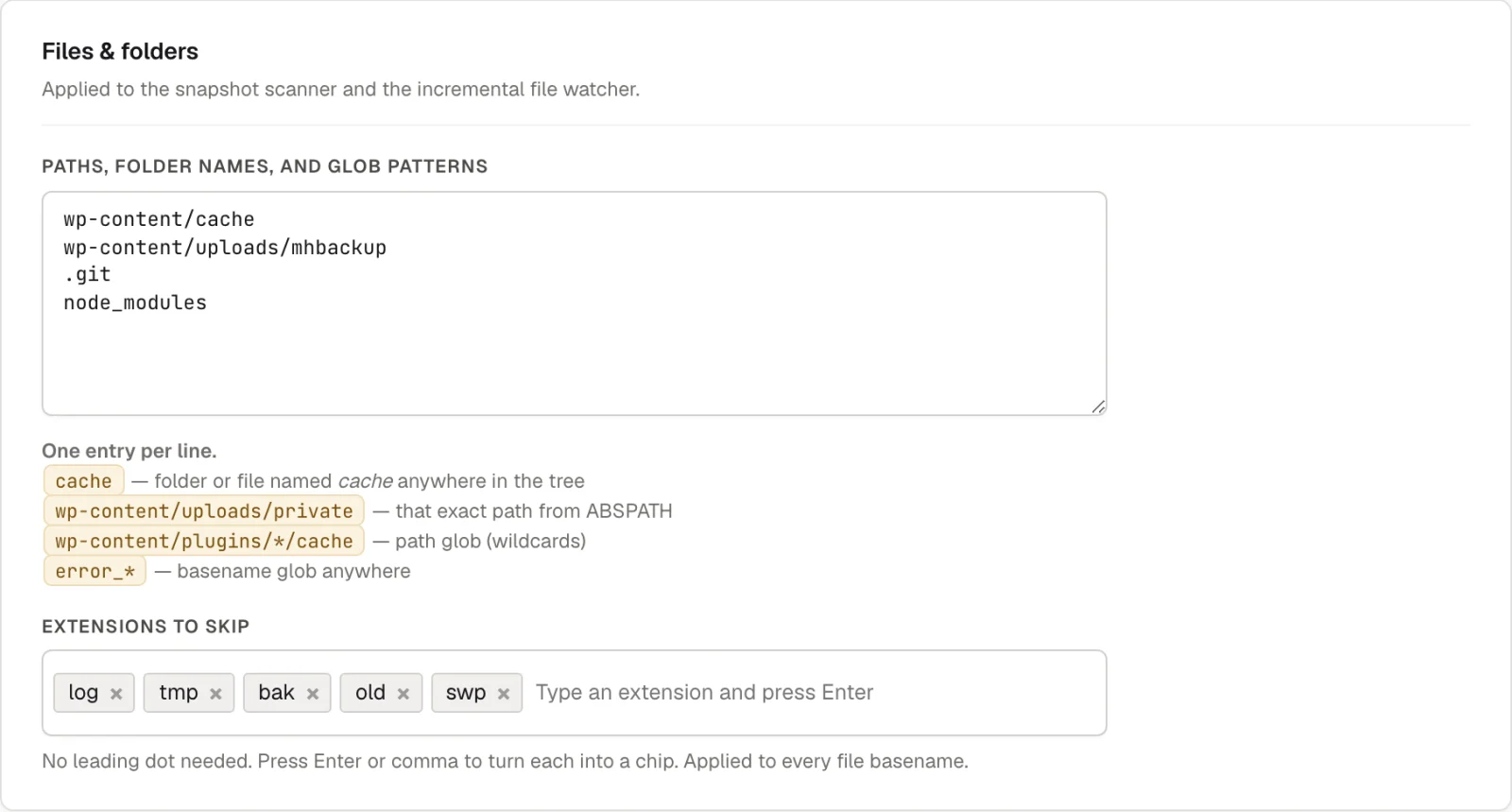
A page cache is a folder of files that change all the time and can be rebuilt in minutes. Backing it up wastes reading, storage and upload, and every purge would look like a wave of changed files. By default Must-Have Backup skips any folder named cache, wherever it is, which covers Swift Performance AI’s wp-content/swift-ai/cache. Files ending in log, tmp, bak, old and swp are skipped too. The same rules apply to full snapshots and to the hourly scan.
It is worth looking at this list once. Our demo site uses wp-content/cache instead of the default entry, and that path does not match Swift’s folder, so its cached pages ended up in the snapshot. A bigger find: 230 MB of the 775 MB of files in its latest snapshot are archives that an earlier backup plugin left in wp-content. Delete old archives like these, or add their folder on the Data preferences tab.
cache and the five extensions shown here.Database writes, recorded as they happen
To restore to any minute and not only to a snapshot, Must-Have Backup records every database write between snapshots. It does this with a small wp-content/db.php drop-in, the same mechanism Query Monitor and HyperDB use. Each write is kept in memory and saved to the plugin’s log table in batches when the request ends. A request that writes nothing adds nothing, and a page served from your page cache never reaches WordPress at all.
The cost moves to storage. In one hour on our demo site, with nobody but us opening admin pages and WP-Cron doing its usual work, the capture logged 1,744 database writes. Of those, 1,383 touched wp_options, and 1,022 were routine background writes such as transients and the cron schedule. They are recorded on purpose, because a restore has to replay them, but the Restore tab only counts them instead of listing them.
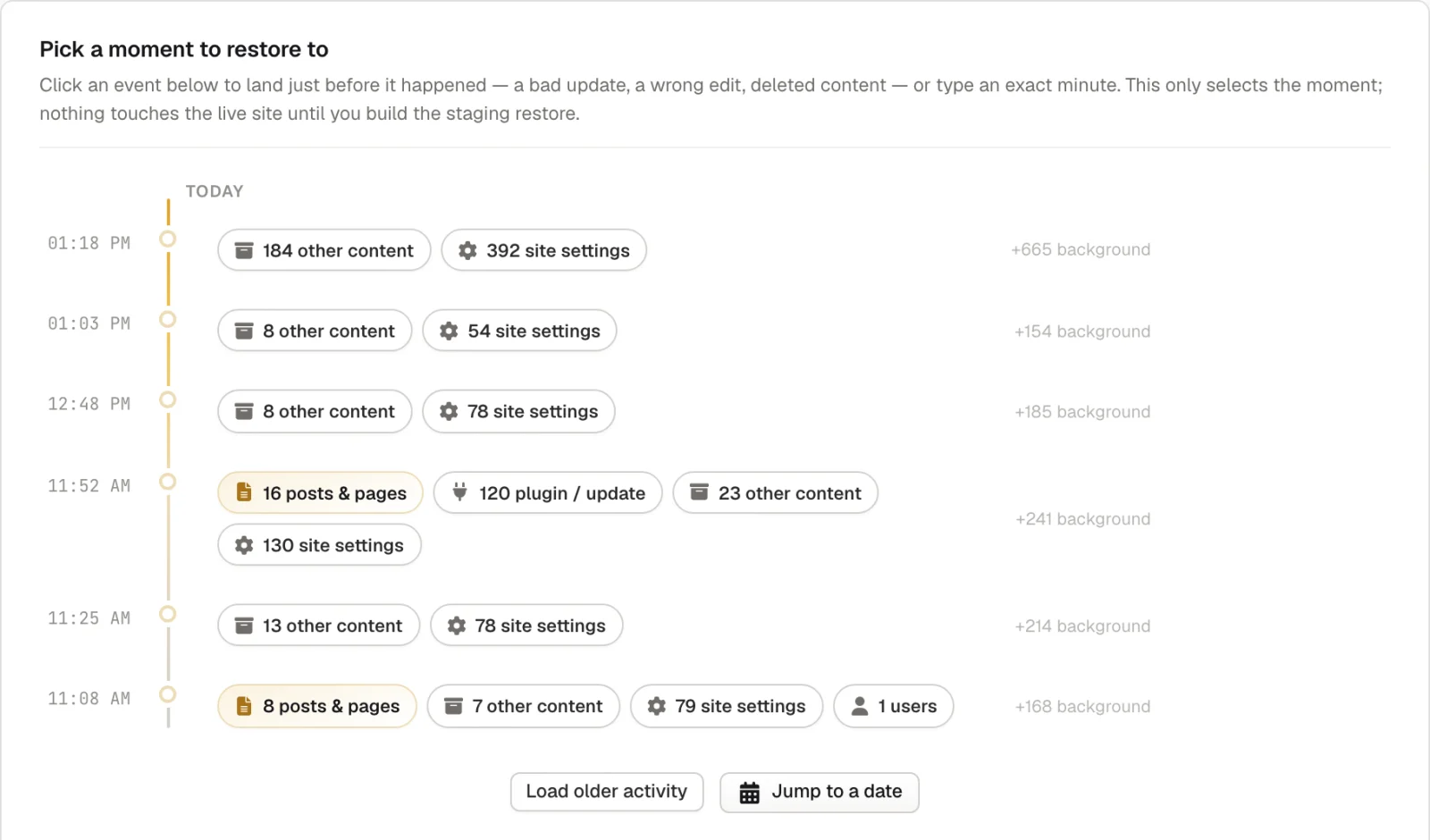
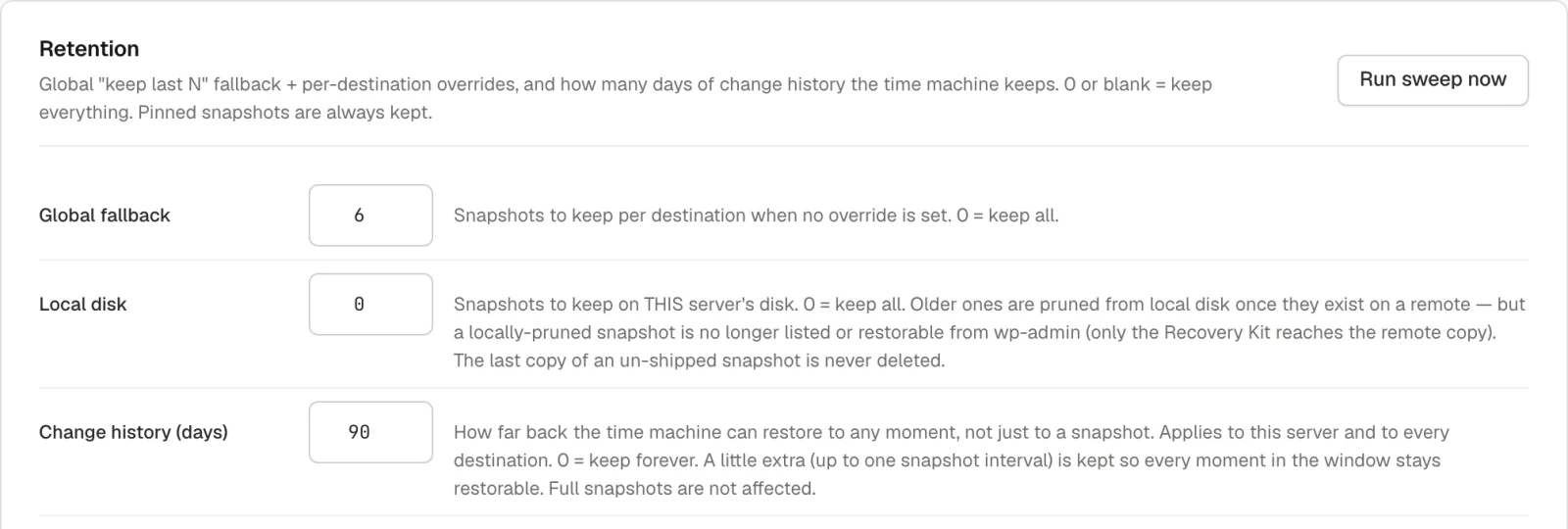
On a busy shop this log can grow to several gigabytes, so it has its own limit. Change history (days) in the Retention card on the Manage tab decides how far back the time machine reaches, 90 days by default. When older entries expire, they are deleted in small batches in the background, not in one large query that would hold the table. One thing to know: InnoDB does not shrink a table file by itself, and the plugin does not run OPTIMIZE TABLE, so after a large cleanup you get the disk space back only when you run it yourself in a quiet hour.
Uploads and restores in small pieces
Uploads run in the background, from a queue that WP-Cron works on every minute. For network destinations the new chunks are packed into bundles of about 64 MB, and a snapshot is shipped one bundle at a time: pack, upload, delete, next. Only chunks the destination does not hold yet are sent. The recorded changes follow every 30 minutes by default, so a lost server only loses what happened since the last push.
Restores follow the same idea. A restore is built next to the live site in steps of about 20 seconds, driven by the open admin page, so no single request runs long enough to hit a host’s time limit. Keep the tab open while it works. Going live is a rename of files and tables, and until you confirm it, a rollback puts the previous version back.
What it still costs
- A full snapshot still reads every file and every table row. Deduplication saves writing and uploading, not reading, so keep full snapshots weekly or less often.
- Scans and uploads run on WP-Cron. On a well cached site few requests reach WordPress, so WP-Cron fires less regularly. A real cron job that calls
wp-cron.phpkeeps them on time. - If
wp-content/db.phpalready belongs to another plugin, such as Query Monitor or a database cache, Must-Have Backup leaves it alone. Restores are then limited to snapshot points. - A full restore needs roughly twice the size of the site in free disk space while it runs.
Back up the changes, not the whole site
A backup that copies the whole site every night spends most of its work on things that did not change, and your visitors share the server with it while it runs. Reading only what changed, storing each piece once and shipping it in small bundles keeps the daily work in proportion to what actually happened on the site. If that is the kind of backup your site is missing, take a look at Must-Have Backup.